Enter matrices, then add, subtract and multiply them in Scientific calculator plus 991 for Android
Press MODE and choose MATRIX, then SHIFT 4 (MATRIX), EDIT and a matrix: set its size, type each element and press = after it. Back on the calculation screen, combine the stored matrices by name with + − × and =. MatA + MatB adds element by element; MatA × MatD multiplies a 2 × 2 by a 2 × 3 and gives a 2 × 3. For a matrix you need only once, the 2nd keyboard's template key types it straight into the calculation.
- Mode
- MODE, MATRIX
- Matrices
- MatA to MatD, 1 × 1 up to 7 × 7
- Operations
- + −, × by a number or a matrix, x² and xʸ
- Last result
- MatAns
In MATRIX Mode a matrix is entered once, into one of four named variables, and every calculation after that uses its name. That is what makes a worksheet of matrix products quick: MatA, MatB, MatC and MatD are typed in the editor, and the arithmetic is MatA × MatB and a press of =.
Store a matrix
To store a matrix in MatA
-
Press MODE and choose MATRIX.
-
Press SHIFT 4 MATRIX, tap EDIT and choose MatA. The editor opens on MatA.
-
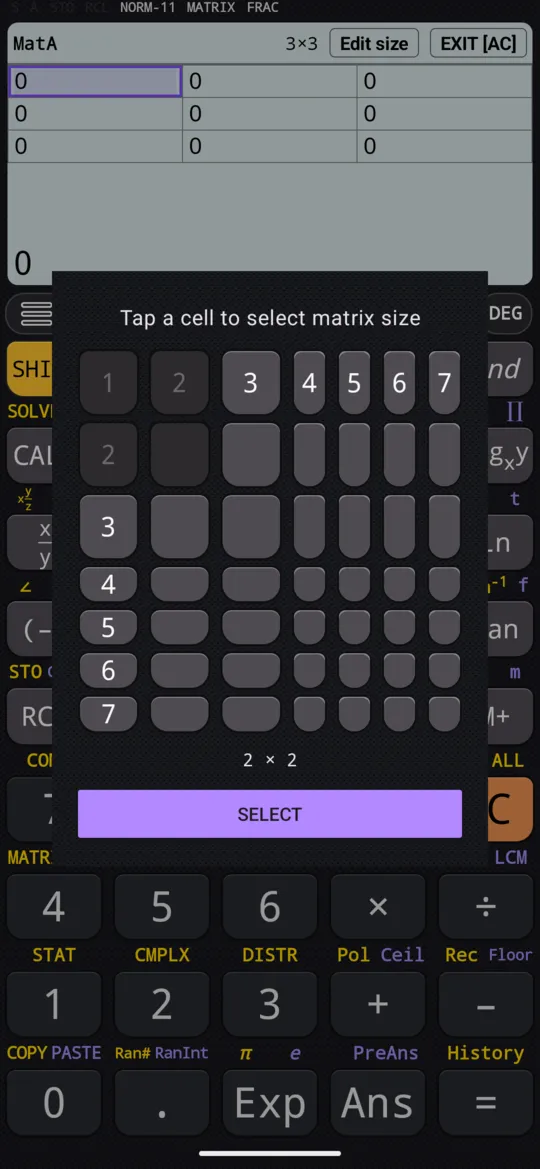
Tap Edit size and pick the number of rows and columns from the grid, anything from 1 × 1 up to 7 × 7.
-
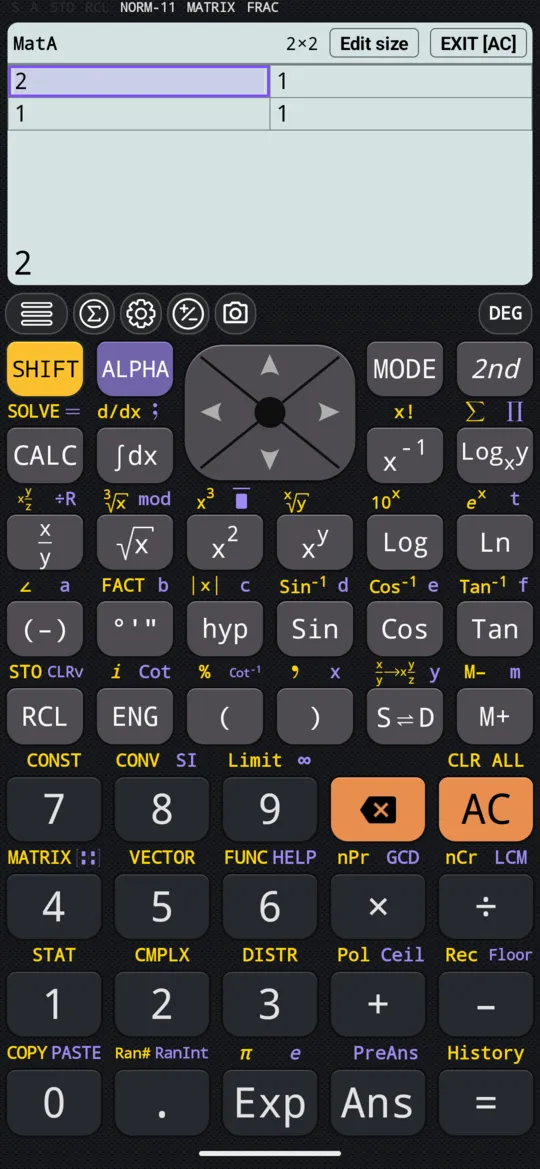
Type each element and press =: the selection moves to the next cell, left to right and row by row. For the manual's MatA, choose 2 × 2 and type 2 = 1 = 1 = 1 =.
-
Tap EXIT [AC] above the editor, or press AC, to go back to the calculation screen. The elements are kept.
A few things about the editor:
- Move between cells with left right up down , or tap a cell directly.
- An element may be a whole expression, a fraction or √2 as readily as a whole number; = works it out.
- Resizing a matrix later keeps the elements that still fit and fills any new cell with 0.
- EXIT [AC] does exactly what AC does. If you have started typing into the selected cell, the first press only clears that entry, and the second leaves the editor.
The matrices in the examples
The examples below use the manual's matrices: MatA, which the steps above store, and these two, stored the same way.
| MatB | |
|---|---|
| 2 | -1 |
| -1 | 2 |
| MatD | ||
|---|---|---|
| 1 | 2 | 3 |
| 4 | 5 | 6 |
Add and subtract
Two matrices of the same size add and subtract element by element, with + and -. The names come from the NAMES section of the matrix menu: for MatA + MatB, press AC SHIFT 4 MATRIX MatA + SHIFT 4 MATRIX MatB =.
in MatA + MatB
out [4, 0; 0, 3]
in MatA - MatB
out [0, 2; 2, -1]
Multiply by a number
A number times a matrix multiplies every element by that number: AC 3 × SHIFT 4 MATRIX MatA =.
in 3 × MatA
out [6, 3; 3, 3]
Multiply two matrices
× between two matrices is the matrix product, which is not the same as multiplying element by element. Each element of the answer is a row of the first matrix against a column of the second, so the number of columns in the first must equal the number of rows in the second.
in MatA × MatB
out [3, 0; 1, 1]
The sizes only have to meet in the middle. MatA is 2 × 2 and MatD is 2 × 3: two columns against two rows, so MatA × MatD works, and the answer takes the outer two numbers, 2 × 3.
in MatA × MatD
out [6, 9, 12; 5, 7, 9]
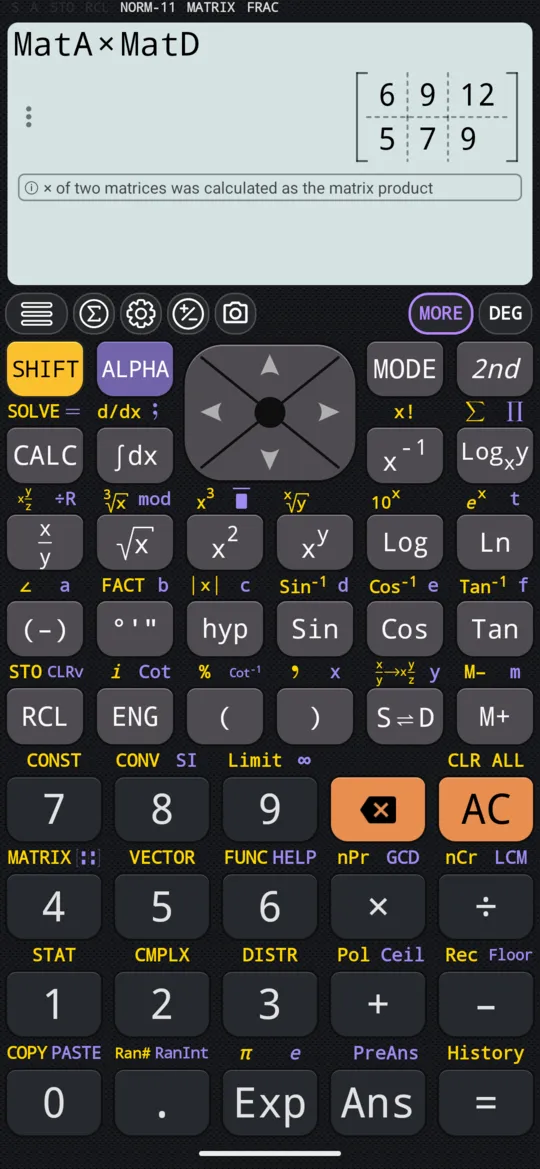
Order matters. MatA × MatB and MatB × MatA are usually different matrices, and MatD × MatA does not meet the rule at all: MatD has three columns, MatA two rows.
Powers
A square matrix can be raised to a power: x² squares it, and xʸ takes any other power. MatA² is MatA × MatA.
in MatA²
out [5, 3; 3, 2]
x⁻¹ gives the inverse, the matrix that undoes MatA; the determinant and the inverse have a page of their own.
Copy one matrix to another
To copy a matrix into another variable
-
Open the matrix you want to copy under EDIT, so it is showing in the editor.
-
Press SHIFT RCL STO.
-
Press the key of the destination: (-) for MatA, °'" for MatB, hyp for MatC or Sin for MatD. The copy is made, and the editor switches to it, so you can check or change it straight away.
Use the last result: MatAns
Whenever a calculation gives a matrix, that matrix is kept in MatAns. Insert it from NAMES to carry a result into the next calculation without typing it again: MatA × MatB, then MatAns × MatD. MatAns has no ✎ icon, because the calculator writes it; you can use it but not edit it.
On the 2nd keyboard
Outside MATRIX Mode there are no MatA to MatD. The 2nd keyboard's template key types a matrix into the calculation itself instead, for an answer you need once.
To type a 2 × 2 matrix on the 2nd keyboard
-
Press 2nd to turn to the second page.
-
Press the template key, [::], and choose 2 rows and 2 columns. An empty 2 × 2 grid appears in the calculation, the cursor in its first cell.
-
Press 1st to go back to the digits, and type the elements with right between them: 1 right 2 right 3 right 4. The cursor moves left to right and then on to the next row.
-
Press right once more to leave the matrix, and carry on with the calculation.
in [■, ■; ■, ■]
in [1, 2; 3, 4]
Then + - × from the first page work exactly as they do with numbers. The manual calls this matrix P, and a second one, [[2, 1], [1, 2]], Q.
in [1, 2; 3, 4] + [2, 1; 1, 2]
out [3, 3; 4, 6]
in 3[1, 2; 3, 4]
out [3, 6; 9, 12]
For the product, × and the second page's • give the same answer.
in [1, 2; 3, 4] • [2, 1; 1, 2]
out [4, 5; 10, 11]
When the sizes do not match
- Addition and subtraction need two matrices of exactly the same size. A 2 × 2 and a 2 × 3 leave nothing to compute, and the calculator shows the expression back unchanged instead of an answer.
- Multiplication needs the columns of the first matrix to match the rows of the second.
- Powers need a square matrix.
If an answer is not what you expect, check the sizes before anything else: open the matrices under EDIT, or read the sizes beside their names in NAMES.
At a glance
| Keys | What they do |
|---|---|
| SHIFT 4 MATRIX | The matrix menu: NAMES, EDIT, MATH |
| Edit size | Sets the size, 1 × 1 to 7 × 7 |
| = | Confirms an element and moves to the next cell; runs the calculation |
| left right up down | Move between cells in the editor |
| EXIT [AC] | Leaves the editor for the calculation screen |
| + - | Add or subtract two matrices of the same size |
| × | A number times a matrix, or the product of two matrices |
| x² xʸ | Raise a square matrix to a power |
| SHIFT RCL STO | Copies the matrix in the editor to another variable |
| 2nd [::] | Types a matrix into the calculation, on the 2nd keyboard |
Questions
How do I multiply two matrices on the calculator?
Store them first: in MATRIX Mode, SHIFT 4 (MATRIX), EDIT, then the matrix, its size and its elements. Then type the product by name, SHIFT 4 (MATRIX), MatA, ×, SHIFT 4 (MATRIX), MatB, and press =. The columns of the first must match the rows of the second: a 2 × 2 times a 2 × 3 works and gives a 2 × 3.
Why is MatA × MatB different from MatB × MatA?
Because matrix multiplication is not commutative: each element of the product is a row of the first matrix against a column of the second, so swapping them pairs different rows and columns. With MatA = [[2, 1], [1, 1]] and MatB = [[2, −1], [−1, 2]], MatA × MatB is [[3, 0], [1, 1]], and the product the other way round is usually a different matrix.
Can I put fractions or square roots in a matrix?
Yes. An element may be a whole expression, a fraction or √2 as readily as a whole number, and = works it out as you enter it. Results stay exact where they can, so a matrix of thirds comes back in thirds rather than as rounded decimals.
What happens if I add two matrices of different sizes?
Nothing is computed. A 2 × 2 plus a 2 × 3 has no answer, and the calculator shows the expression back unchanged rather than an error. Addition and subtraction need two matrices of exactly the same size; the NAMES list shows each stored size, such as [2×2].
Related pages
- Determinant, inverse and transpose of a matrix Det, the inverse in exact fractions, Transpose, the identity
- Rank, row reduction, trace and eigenvalues of a matrix MatrixRank, RowReduce, Tr, Eigenvalues and Eigenvectors
- Enter vectors, then take the dot and cross product store or type vectors; + −, the dot product, the cross product
- Solve simultaneous linear equations in 2, 3 or 4 unknowns a grid of coefficients in, each unknown out
Written from the calculator's own manual and from the app itself, version 7.6.0; every figure is one the manual shows or a capture of the app proves. Last revised on 27 September 2026.
Bug reports and feature requests go to kimcuc@samatica.com — a person reads it.