Enter vectors, then take the dot and cross product in Scientific calculator plus 991 for Android
In VECTOR Mode, SHIFT 5 (VECTOR), EDIT and a vector: choose 1 x 2 or 1 x 3, type the components, and calculate with VctA to VctD by name. On the 2nd keyboard, SHIFT and ALPHA with the template key insert an empty 2- or 3-dimensional vector. The dot product (•) is a single number; the cross product (× or Cross) is a vector for two 3-dimensional vectors and a single number for two 2-dimensional ones.
- Mode
- MODE, VECTOR: VctA to VctD, 2- or 3-dimensional
- 2nd keyboard
- SHIFT [::] (v2), ALPHA [::] (v3)
- Dot product
- •, a single number
- Cross product
- × or Cross: a vector in 3D, a number in 2D
A vector here is a row of two or three numbers, and the calculator takes it in the same two ways as a matrix: stored in VECTOR Mode under a name, or typed into a calculation with the 2nd keyboard's templates. The dot product and the cross product then take one key each, and the cross product has one trap worth knowing about.
Store a vector
To store a vector in VECTOR Mode
-
Press MODE and choose VECTOR.
-
Press SHIFT 5 VECTOR, tap EDIT and choose a vector, for example VctA. The editor opens on it, 1 × 2 to begin with.
-
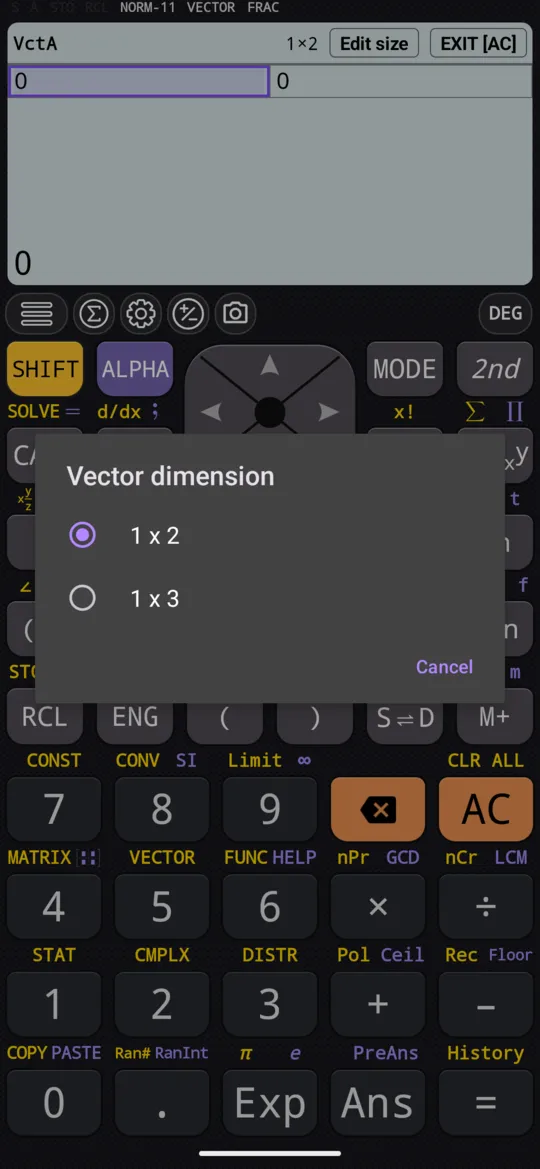
Tap Edit size above the editor. In the Vector dimension dialog, choose 1 x 2 for a 2-dimensional vector or 1 x 3 for a 3-dimensional one.
-
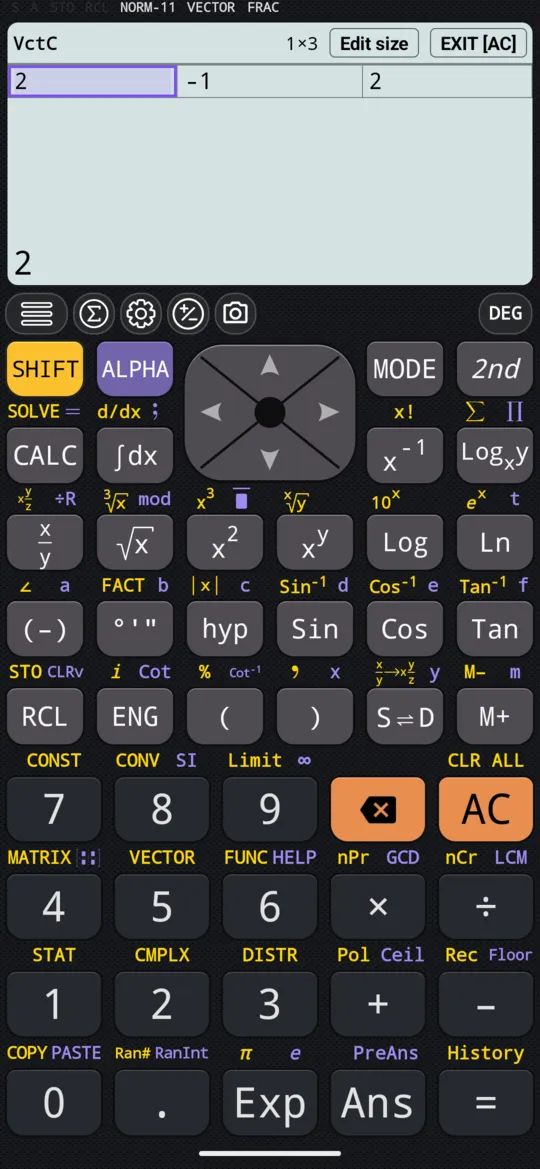
Type each component and press =; the selection moves to the next cell. left right move between cells.
-
Tap EXIT [AC] above the editor, or press AC, to go back to the calculation screen. The components are kept.
For the manual's VctA = (1, 2), choose 1 x 2 and type 1 = 2 =. Choosing 1 x 3 gives a third cell; the manual's VctC = (2, −1, 2) looks like this:
| VctC | ||
|---|---|---|
| 2 | -1 | 2 |
To change a vector later, open it under EDIT again. Choosing the other size in the dimension dialog resizes it, keeping the components that still fit and filling any new cell with 0. A component may be a whole expression, a fraction or √2, and = works it out. As in MATRIX Mode, EXIT [AC] does what AC does: with a half-typed entry in the cell, the first press clears the entry and the second leaves.
The examples below use the manual's four vectors: VctA = (1, 2) and VctB = (3, 4) in two dimensions, VctC = (2, −1, 2) and VctD = (1, 0, −1) in three.
Add, subtract and scale
Two vectors of the same dimension add and subtract component by component: AC SHIFT 5 VECTOR VctA + SHIFT 5 VECTOR VctB =.
in VctA + VctB
out {4, 6}
in VctA - VctB
out {-2, -2}
A number times a vector scales every component:
in 3 × VctA
out {3, 6}
The dot product
The dot product of two vectors is a single number: the components multiplied in pairs and added up. In VECTOR Mode, choose Dot from the MATH section of the vector menu to insert the • operator between them: AC SHIFT 5 VECTOR VctA SHIFT 5 VECTOR Dot SHIFT 5 VECTOR VctB =.
in VctA • VctB
out 11
That is 1 × 3 + 2 × 4 = 11.
The cross product
× between two vectors is the cross product, and so is Cross(vector1,vector2) from the MATH section; the two give the same answer. What comes back depends on the dimension:
- Two 3-dimensional vectors give a vector, perpendicular to both.
- Two 2-dimensional vectors give a single number. The vectors lie in a plane, so only the component perpendicular to it is left, and the calculator reports that number rather than a 3-dimensional vector.
in VctC × VctD
out {1, 4, 1}
in VctA × VctB
out -2
The second is 1 × 4 − 2 × 3 = −2, a number and not a vector.
Reuse the last result: VctAns
A calculation that gives a vector keeps it in VctAns. Insert it from NAMES to carry the result into the next calculation. VctAns has no ✎ icon: the calculator writes it, so you can use it but not edit it.
On the 2nd keyboard
Outside VECTOR Mode, the 2nd keyboard types a vector straight into the calculation. The template key carries v2 and v3 above it: SHIFT [::] v2 inserts an empty 2-dimensional vector and ALPHA [::] v3 an empty 3-dimensional one.
To type the vector (1, 2, 3)
-
Press 2nd to turn to the second page.
-
Press ALPHA [::] v3. An empty row of three cells appears in the calculation, the cursor in the first one.
-
Press 1st for the digits, and type 1 right 2 right 3.
-
Press right once more to leave the vector, and carry on with the calculation.
in (■, ■, ■)
in (1, 2, 3)
The manual calls this vector u, and uses v = (1, 5, 7) beside it. + - × from the first page work as they do with numbers:
in (1, 2, 3) + (1, 5, 7)
out {2, 7, 10}
in 3(1, 2, 3)
out {3, 6, 9}
The dot product is the • key between two vectors:
in (1, 2, 3) • (1, 5, 7)
out 32
That is 1 × 1 + 2 × 5 + 3 × 7 = 32. For the cross product, press SHIFT • Cross, which inserts Cross( ready for its two arguments, and fill in the two vectors separated by ,; or press × between them.
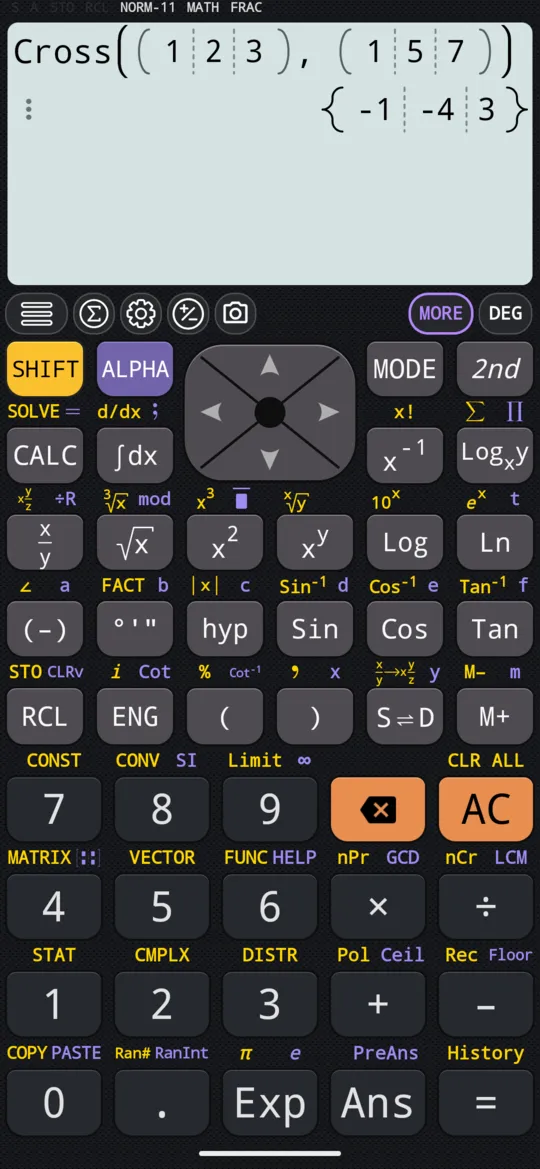
in Cross((1, 2, 3), (1, 5, 7))
out {-1, -4, 3}
in Cross((3, 4), (1, 1))
out -1
The second is 3 × 1 − 4 × 1 = −1, a number and not a vector.
× on a stored answer is not a cross product
in {1, 2, 3} × {1, 5, 7}
out {1, 10, 21}
Use Cross(vec1, vec2) whenever either side is a stored value. It always gives the cross product:
in Cross({1, 2, 3}, {1, 5, 7})
out {-1, -4, 3}
A number answer (a dot product, a length, a 2-dimensional cross product) cannot go into • or Cross at all.
When the dimensions do not match
- Dot product: a 2-dimensional and a 3-dimensional vector are rejected with an error message.
- Addition and subtraction: there is nothing to compute, so the calculator shows the expression back instead of an answer. A subtraction may come back as an addition of the negated vector; that is still the expression, not a result.
- The plain matrix template: [::] on its own inserts a matrix, not a vector. A one-row matrix looks exactly like a vector on screen, but • and Cross reject it with an error, so keep to v2 and v3 for vector work.
If an answer is not what you expect, count the cells in each vector first; in VECTOR Mode, open the two under EDIT.
At a glance
| Keys | What they do |
|---|---|
| SHIFT 5 VECTOR | The vector menu in VECTOR Mode: NAMES, EDIT, MATH |
| 1 x 2, 1 x 3 | The dimension of the vector in the editor |
| + - | Add or subtract two vectors of the same dimension |
| × | A number times a vector; between two vectors, the cross product |
| Dot (MATH), • (2nd keyboard) | The dot product, a number |
| Cross(vector1,vector2), SHIFT • Cross | The cross product, whatever the two sides are |
| SHIFT [::] v2, ALPHA [::] v3 | An empty 2- or 3-dimensional vector, on the 2nd keyboard |
Questions
How do I find the cross product of two vectors?
Put × between two vectors, or use Cross(vector1, vector2); both give the same answer. Two 3-dimensional vectors give a vector perpendicular to both: (2, −1, 2) × (1, 0, −1) is (1, 4, 1). Two 2-dimensional vectors give a single number instead: (1, 2) × (3, 4) is 1 × 4 − 2 × 3 = −2.
How do I get the dot product?
In VECTOR Mode, choose Dot from the MATH section of the vector menu to insert the • operator between two vectors. On the 2nd keyboard, press the • key. The answer is a single number: (1, 2) • (3, 4) = 1 × 3 + 2 × 4 = 11.
Why did × multiply my vectors component by component?
Because × is the cross product only while both sides are vectors typed with the template. An answer comes back as a plain list, so if you store it in a variable and multiply it, × multiplies component by component instead, with no error: {1, 2, 3} × {1, 5, 7} gives {1, 10, 21}. Use Cross(vec1, vec2) whenever either side is a stored value; it always gives the cross product.
Can I use vectors with more than three components?
VECTOR Mode stores vectors of two or three components, and the 2nd keyboard's vector templates are v2 and v3. The dimension dialog offers 1 x 2 and 1 x 3, nothing larger.
Related pages
- Vector length, angle between vectors, unit vector, projection and distance Norm, VectorAngle, Normalize, Projection, EuclideanDistance
- Enter matrices, then add, subtract and multiply them store MatA to MatD, then + − ×, powers and MatAns
- Matrices and vectors which way in, and what each page of the chapter covers
Written from the calculator's own manual and from the app itself, version 7.6.0; every figure is one the manual shows or a capture of the app proves. Last revised on 27 September 2026.
Bug reports and feature requests go to kimcuc@samatica.com — a person reads it.